
Help center › Waiters and kitchen
Waiters and kitchen
Waiter app, kitchen display (KDS), stations, printers and couriers.
Waiter app
Waiters use siparo.net/garson on a phone or tablet. The device is paired once (Pairing devices); then each waiter logs in with their own PIN.
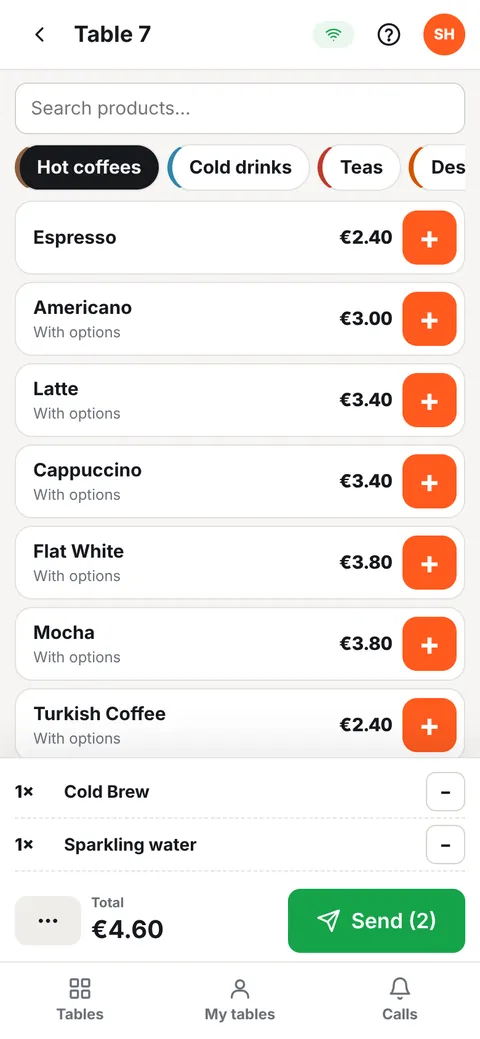
- In the Tables tab, tap a table.
- Choose a category or use Search products…, then tap products. Products with options open a selection window.
- Press Send at the bottom to send the order to the kitchen. Unsent items appear faded.
- My tables shows the tables you opened; Calls shows table calls and QR orders awaiting approval. Answer a call with On my way / OK.
When the kitchen marks an order Ready, you get a notification on your phone. If the internet drops, the order waits on the device and is sent when the connection returns.
Kitchen display (KDS)
In the kitchen, open siparo.net/kds on a tablet, TV or monitor. Every order sent to the kitchen appears as a ticket card.
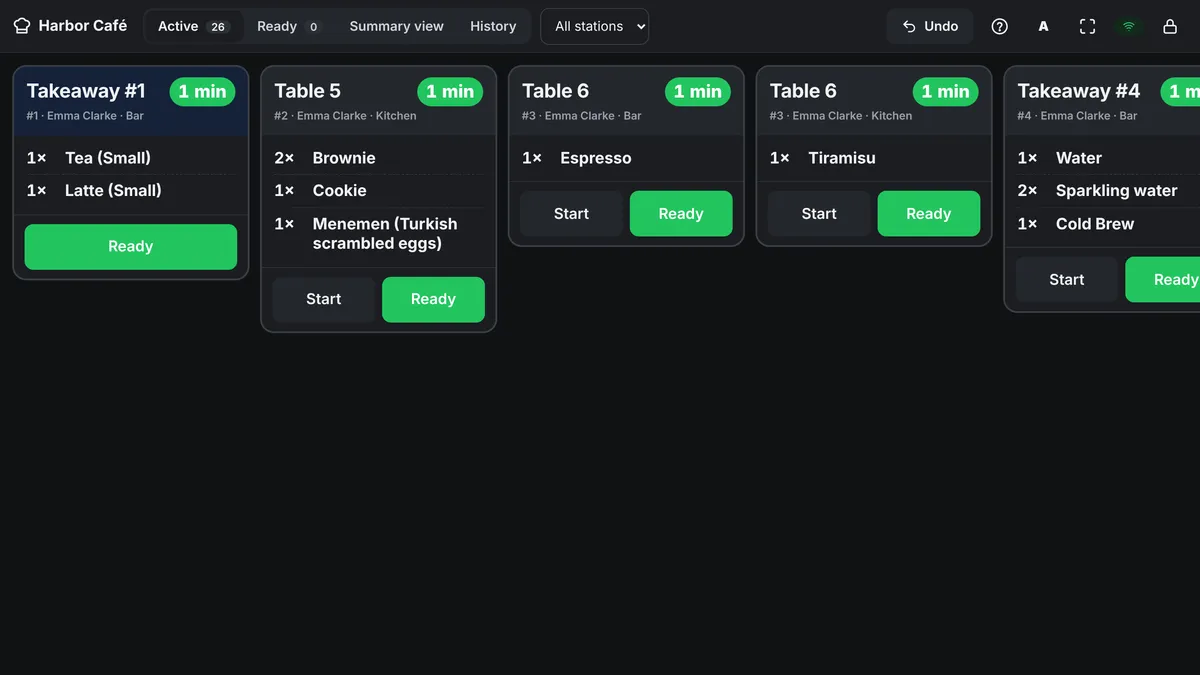
- Start: you've started preparing (the card turns yellow).
- Ready: the waiter is notified (the card turns green). Served removes the card.
- Tapping the card header also moves it to the next state. Pressed by mistake? Undo.
- Cards over the target time turn orange, very late ones red.
- A card with a VOID band reports an item voided at the POS; close it with Got it.
- Summary view lists, across all pending orders, how many of each item to prepare.
- Use the list at the top to choose which station this screen shows; A enlarges the text.
Stations and printers
Dashboard → Team & devices → Kitchen & printers:
- Define stations (Kitchen, Bar, Desserts…). Categories and products are linked to a station.
- Choose a printer for each station, or "No printing (kitchen display only)".
- The Check / bill printer prints receipts and pre-bills.
- Kitchen tickets from waiter phones are printed from the POS computer you choose (Which POS should print?).
"Send to kitchen" creates a separate ticket per station: it prints from the relevant POS if the station has a printer, and appears on the kitchen display if there is one.
--kiosk-printing and set the thermal printer as the default printer in Windows. Details: Troubleshooting.Couriers
Staff with the Courier role only see the My deliveries tab in the waiter app: address, phone, map, On the way and Delivered buttons. Couriers are assigned to delivery orders at the POS.