
Help center › Staff and permissions
Staff and permissions
Adding staff, POS PINs, roles, permissions, discount limits and manager approval.
Dashboard → Team & devices → Staff & permissions.
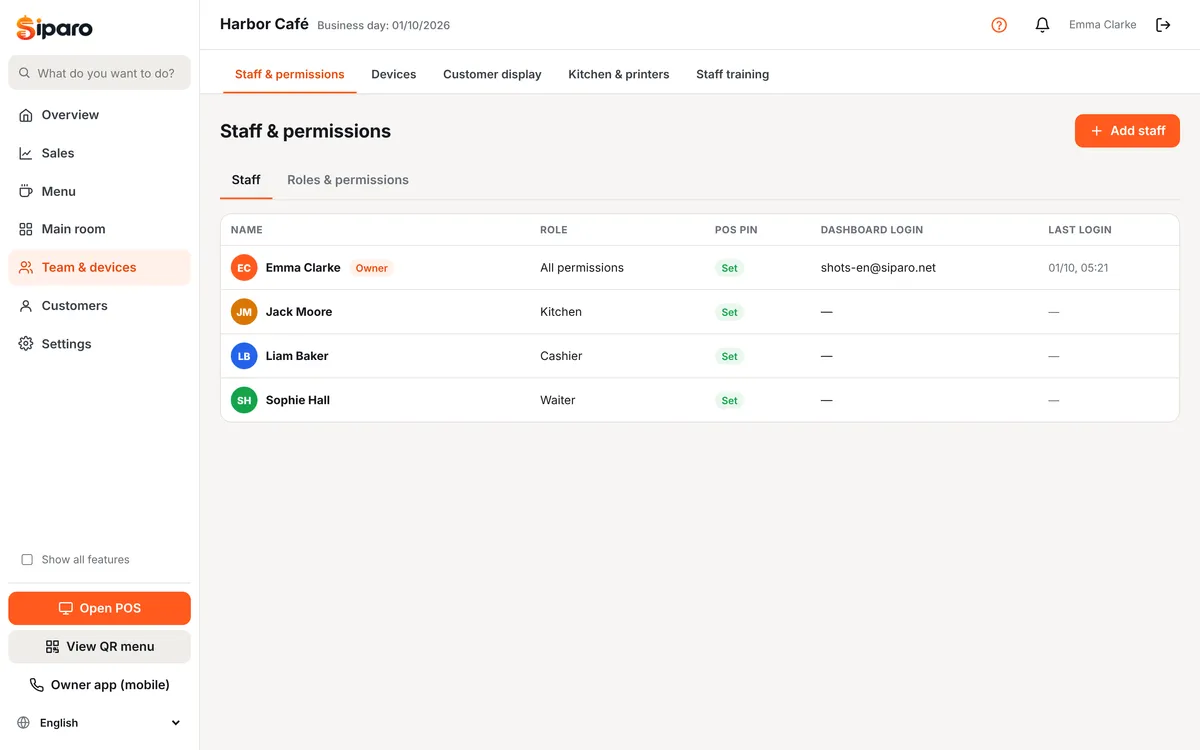
Adding staff and PINs
- Add staff → enter the full name and choose a role.
- Enter a POS PIN (4 digits) or create one with Random. Each person's PIN must be different.
- Give the PIN to the employee separately. It is used to log in at the POS, the waiter app and the kitchen display.
- For people who also need the dashboard (e.g. a manager), set an email and password.
Forgotten PIN: open the staff card and set a new PIN; the old PIN stops working immediately. Someone leaves: Deactivate. Their history is kept, but they can't log in.
Roles and permissions
Built-in roles: Manager (all permissions), Cashier, Waiter, Kitchen, Courier. Edit them or add new roles in the Roles & permissions tab.
| Permission group | Examples |
|---|---|
| Sales | Selling, taking payment, moving tables, reprinting receipts, opening the drawer, sales on account |
| Discounts & voids | Discount, over-limit discount/approving, voiding items sent to the kitchen, comps, cancelling checks, payment refunds, changing prices |
| Till | Opening/closing the till, cash in/out, end of day (Z) |
| Management | Reports, menu, floor, staff, settings, stock, customers, kitchen display |
Discount limit and manager approval
Every role has a Maximum discount (%). If an employee wants to give a larger discount or do something they don't have permission for (e.g. void an item already sent to the kitchen), a Manager approval window opens at the POS; an authorized person enters their own PIN. The action is written to the Activity log with the person who did it and the person who approved it.