
Help center › Menu and products
Menu and products
Adding categories and products, sizes, modifier groups, Excel/CSV import, sold out and QR menu translations.
The menu is managed on Dashboard → Menu → Products & categories. Every change reaches the POS, waiter phones and the QR menu within seconds.
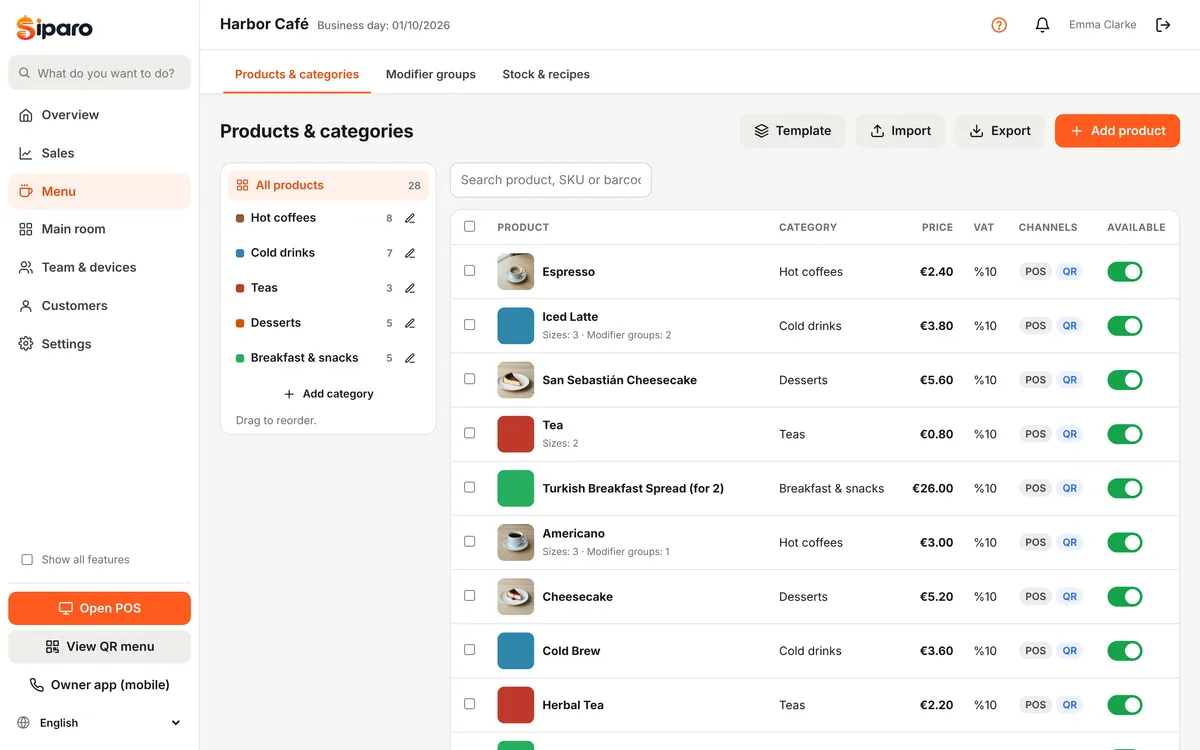
Adding a category
- Click Add category in the list on the left.
- Choose a name and a color. The color shows on the edge of the product buttons at the POS.
- Choose a Kitchen station (e.g. coffees → Bar). When sent to the kitchen, products in this category go to that station's ticket.
- Use Show on POS / Show on QR menu to decide where the category appears.
Drag categories to reorder them; the order is the same at the POS and on the QR menu.
Adding a product
- Click Add product.
- Product name, Category and Price (incl. VAT) are enough. Choose the VAT rate.
- Optionally add an image, description, allergens and tags (vegan, spicy, new…). The image is shown on the QR menu.
- Save.
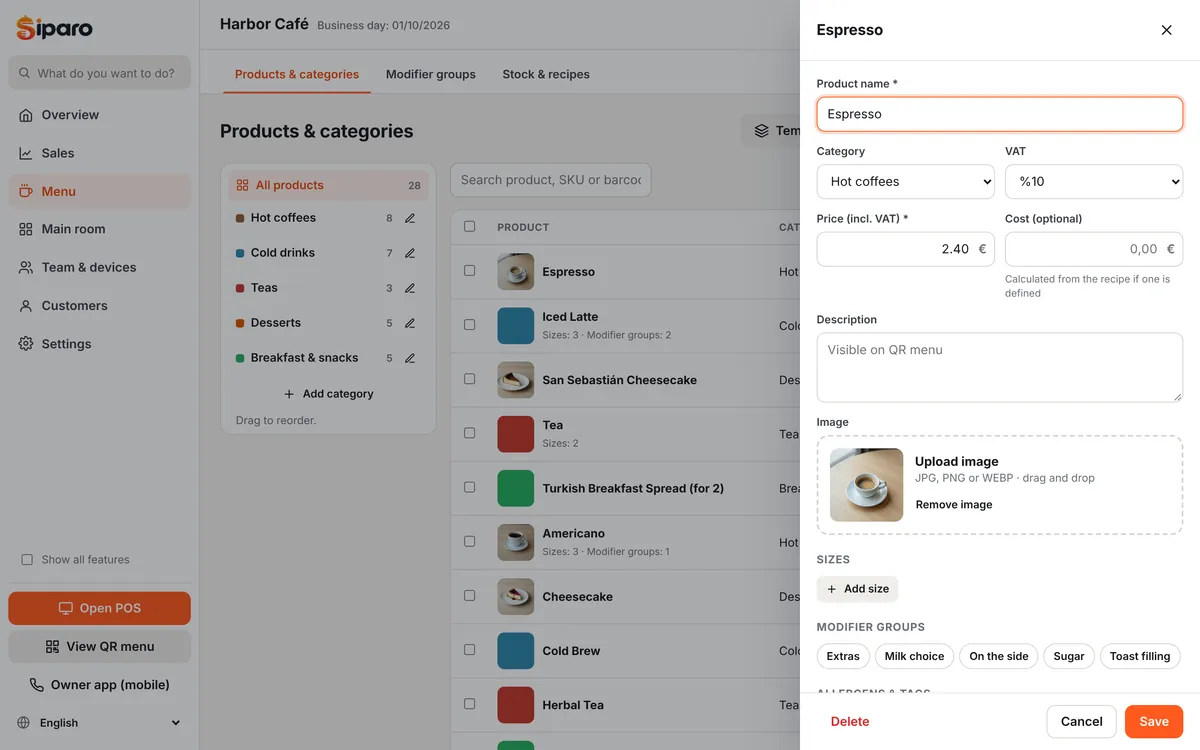
Other options:
- Show in favorites: appears in the "★ Favorites" tab at the POS.
- Sold by weight (kg): the quantity is entered in kilograms at the POS.
- Open price: the price is entered at the POS for each sale (e.g. "Miscellaneous").
- Cost: for profitability reports. Calculated from the recipe if one is defined.
- Barcode / SKU: to add the product by scanning its barcode at the POS.
Sizes
If a product comes in different sizes (Small / Large), use Add size in the product editor and enter each size's name and price. At the POS, tapping the product opens the size choice; the size price is used instead of the product price.
Modifier groups
Options such as milk choice, doneness or extra toppings are defined once on Dashboard → Menu → Modifier groups and linked to many products.
- Minimum selections: 1 or more means a choice is required; the product can't be added at the POS without it.
- Maximum selections: 1 means single choice, 0 means unlimited.
- Each option can have a price difference (e.g. Extra shot +2.50).
To link groups, tick them in the product editor.
Sold out
In the product list, use the button next to a product to switch between Sold out and Available. At the POS you can do the same by long-pressing the product. Sold-out products show a "Sold out" label on the QR menu (or can be hidden entirely in QR settings).
Bulk actions
Select products (checkboxes) to raise prices by a % increase, Move to category… or delete them.
Importing from Excel / CSV
- Click Import. Download the sample file and fill it in.
- In Excel, save the file as CSV (semicolon delimited).
- Columns (keep the Turkish header names):
kategori;ad;fiyat;kdv;aciklama;barkod;sku;alerjenler;etiketler;qr_gorunur;kasa_gorunur— category, name, price, VAT, description, barcode, SKU, allergens, tags, visible on QR, visible on POS. - Choose the file; invalid rows are shown in red in the preview. Click Import products.
Templates
Load a template adds a sample café, restaurant, burger or bar menu to your current menu.
QR menu translations
In the Translations (QR menu) section at the bottom of the product editor, enter the product's name and description in English/German/Turkish. Categories, sizes and modifiers have the same field. If a translation is empty, the main-language text is shown. To enable languages: QR menu.