
Help center › POS
POS
Selling, taking payment and split payments, discounts/comps/voids, refunds, opening and closing the till, shortcuts and offline mode.
The POS is at siparo.net/pos. A short tour opens automatically at first login; replay it with the ? button in the top bar.
Selling
- From Tables (F1) tap a table. You may be asked for the number of guests (can be turned on/off in Settings). For sales without a table, use Quick sale (F2).
- Choose a category on the left and tap a product. For products with sizes or options, a selection window opens.
- To search, just start typing or scan a barcode; Enter adds the first result.
- To kitchen (F8) sends the new items to the kitchen/bar.
- When the guest leaves, PAY (F9).
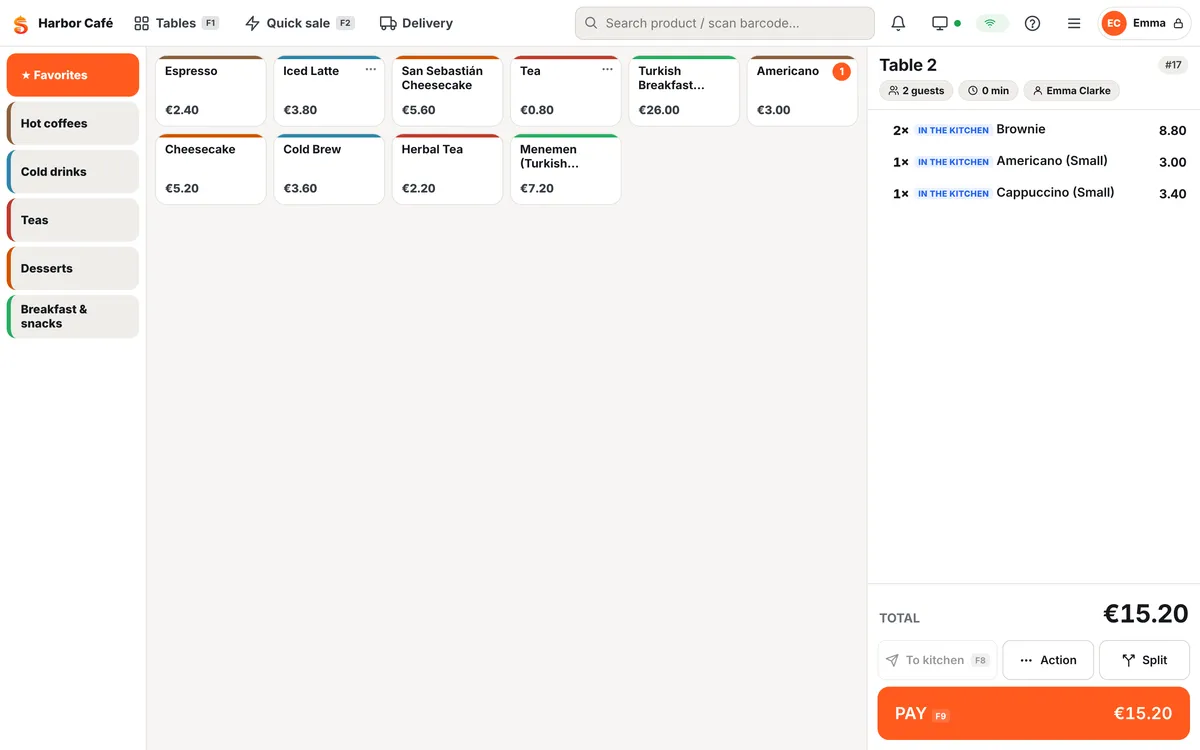
Check line actions
Tap a line; the buttons let you:
- change the quantity (only for items not yet sent to the kitchen),
- add a Note / Edit options,
- Discount, Comp,
- assign a Seat (to split the bill per person),
- Delete / Void. Voiding an item already sent to the kitchen requires a reason, and a "VOID" ticket goes to the kitchen.
Use ↑ ↓ on the keyboard to move between lines.
Taking payment
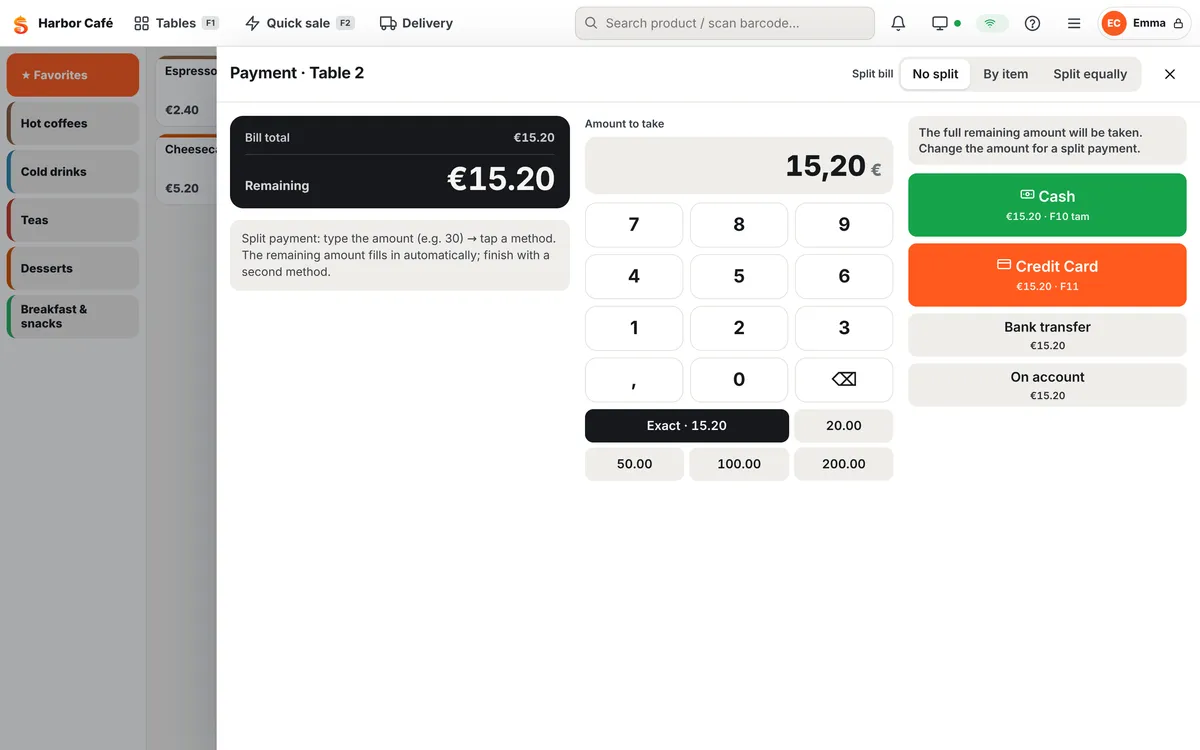
- PAY (F9) opens the payment window. The amount due is shown in large type.
- For cash, type the amount tendered or tap a quick amount; change is calculated.
- Tap a payment method (Cash, Credit Card…). The check closes and you are asked about the receipt.
To take the exact amount with one key: cash F10, card F11.
Split payments and splitting the bill
The Split the bill options at the top of the payment window:
| Mode | What it does |
|---|---|
| No split | The whole bill. To pay with two methods, first type the first amount (e.g. 30), tap a method; the remainder appears automatically — finish with the second method. |
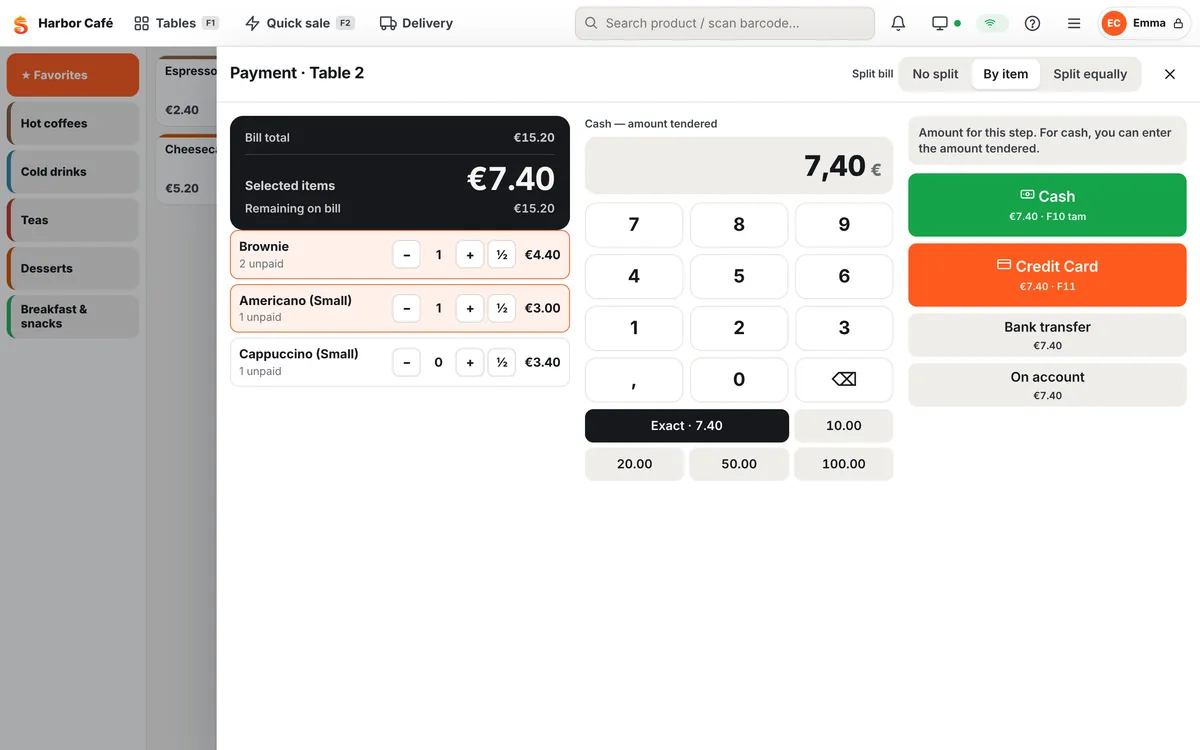
| By item | Each person pays for their own items. Select items (or seats) on the left and tap a method. Shortcut Ctrl+B. |
| Split equally | Divides the total by the number of people; take the next share. |
You can reverse a payment taken by mistake from the Payments taken list (permission may be required).
Discounts, comps, voids
- Check discount: Actions → Discount (Ctrl+D). Percentage or amount, choose a reason.
- Item discount / comp: tap the line → Discount or Comp.
- Cancel check: Actions → Cancel check (reason required).
If you exceed your role's discount limit, a manager PIN is requested on screen. All of these are recorded with who did it and why. See Staff and permissions.
Parked sales
To serve another customer while one is waiting, use Actions → Park sale. Parked sales wait under Parked (F3) in the top bar.
Closed checks, refunds and receipts
Menu (☰) → Closed checks · refunds · receipts: see today's closed checks, reprint a receipt or refund a payment. A refunded check goes back to open checks; correct it and take payment again.
Opening, cash in/out and closing the till
Menu (☰) → Cash management:
- Open till: enter the opening float in the drawer.
- Cash in / out: cash added to or taken from the till during the day (e.g. paying a supplier).
- Print X report: interim report without closing the day.
- Close till: count the cash in the drawer and enter it; the difference from the expected amount is calculated and recorded.
For end of day see End of day (Z).
Customers, delivery, calls
- Assign customer: Actions → Assign customer. Required for sales on account and loyalty.
- Delivery: Delivery in the top bar → phone orders, address and courier assignment.
- Calls (🔔): waiter calls from tables, bill requests and QR orders awaiting approval.
Keyboard shortcuts
| Key | Action | Key | Action |
|---|---|---|---|
| F1 | Tables | F9 | Pay |
| F2 | Quick sale | F10 / F11 | Cash / card, exact amount |
| F3 | Parked sales | Ctrl+D | Discount |
| F8 | Send to kitchen | Ctrl+P | Print bill |
| Ctrl+K | Command palette | Ctrl+L | Lock |
| ? | Show shortcuts | Esc | Close window |
If the internet goes down
The POS keeps selling: orders, kitchen tickets and payments are stored safely on the device and sent to the server in order, exactly once, when the connection returns. The top bar shows the number of pending actions. Don't close the browser or reload the page.