
Help center › Floor and tables
Floor and tables
Adding areas and tables, the floor plan, QR table cards, moving and merging tables.
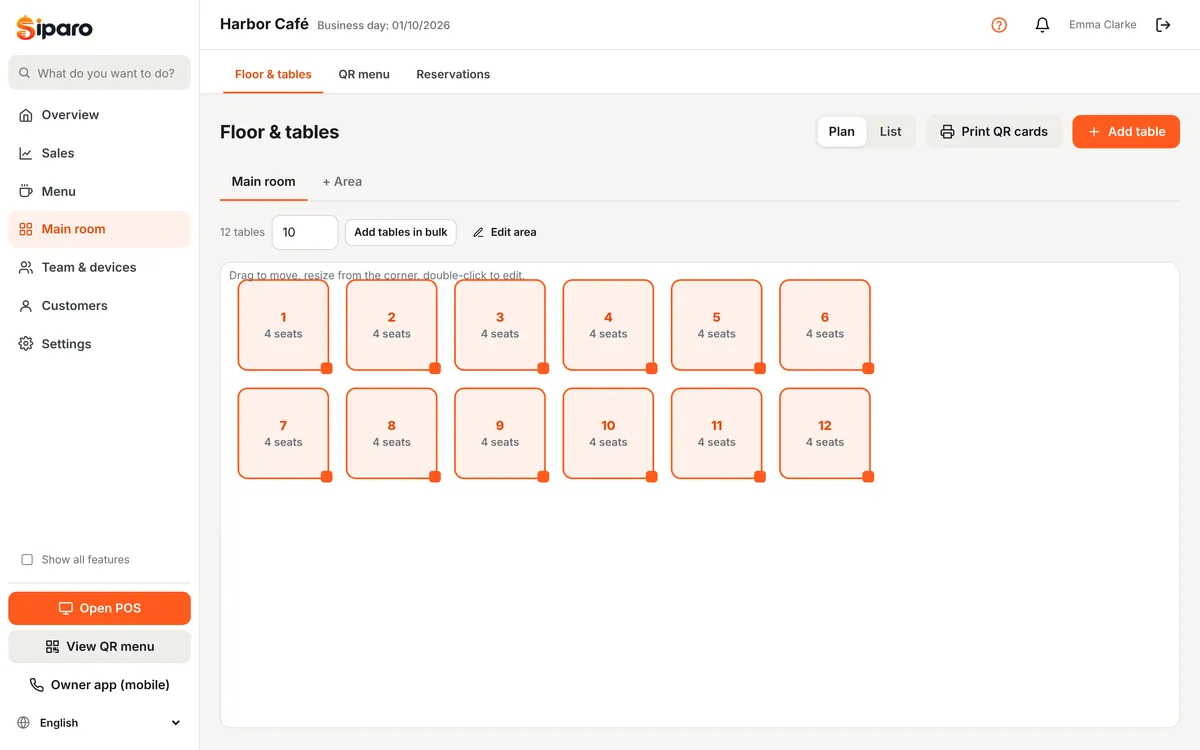
Tables are set up on Dashboard → Main room → Floor & tables. The POS and the waiter app use this plan.
Adding areas and tables
- Use + Area to add areas such as Main room, Garden or Terrace.
- Select an area and click Add table: table name/number, capacity and shape (square, rectangle, round).
- For many tables, use Add tables in bulk: e.g. 1 to 20 in one go.
Floor plan
In plan view, drag tables into place, resize them from the corner and double-click to edit. When done, click Save layout. At the POS, "Plan" view shows this layout; "Grid" view lists the tables in order.
QR table cards
Print QR cards prints a "Scan for the menu" card for each table (several per A4 sheet). Guests who scan a table QR can call a waiter, ask for the bill and (if enabled) place orders.
Important: If you regenerate a QR code (Regenerate QR), the old card stops working; print it again.
Table actions at the POS
- Move table: Check → Actions → Move table → choose a free table. Or long-press the table at the POS.
- Merge: Actions → Merge tables → target table. Both checks are combined into one.
- Transfer items: select a line → Actions → Move selected item to another table. Partially paid items can't be transferred.
Moves and merges are recorded in the Activity log.
Was this page helpful?
Thanks, your feedback has been saved.