
Help center › Customer display
Customer display
Showing the order and total to the customer on a second monitor, separate tablets, slides and the Google review QR.
The customer display shows every item added at the POS and the total to the customer live. At payment it shows the amount tendered and the change in large type. No extra fee or hardware is needed; any monitor will do.
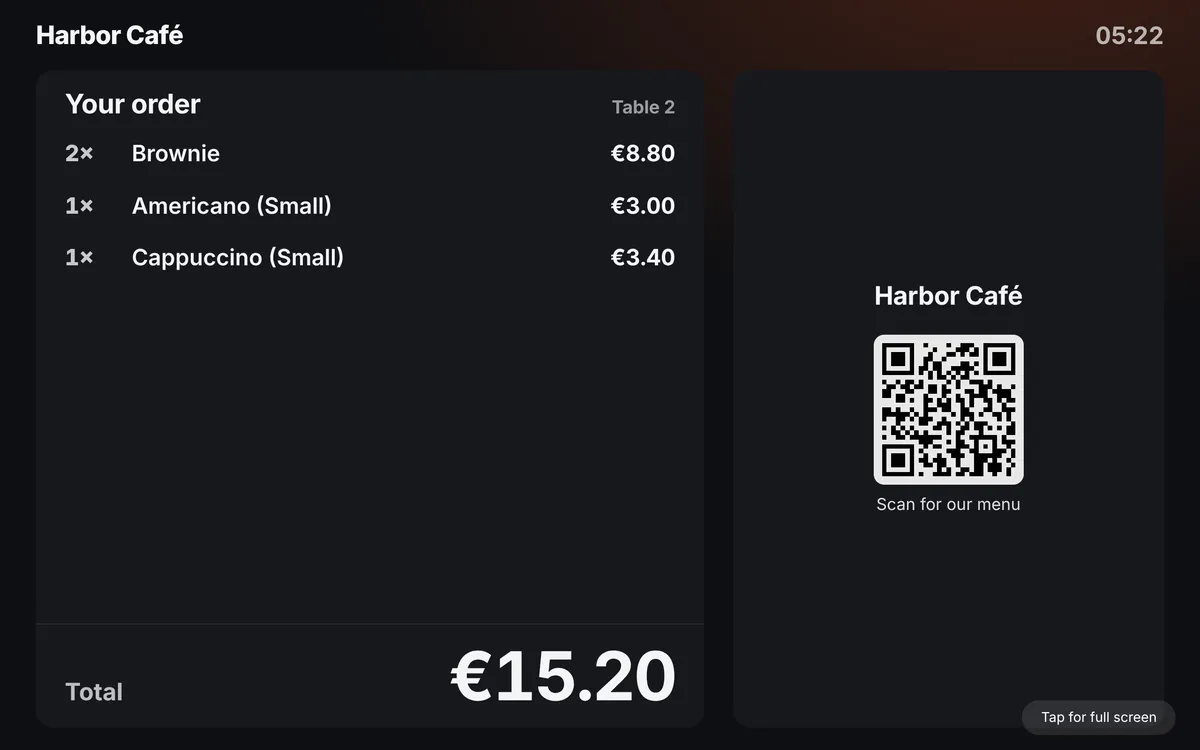
With a second monitor (recommended)
- Connect the second monitor to the POS computer. In Windows choose Extend these displays.
- At the POS, press the monitor icon in the top bar (Open customer display).
- Drag the new window to the second monitor and press F11 for full screen.
No internet is needed between the POS and the customer display, and there is no delay. The green dot next to the icon shows the connection is up.
Separate tablet or TV
Dashboard → Team & devices → Devices → New device → "Customer display (separate device)". Open siparo.net/cfd on the tablet, enter the code and choose which POS it connects to. This method works over the internet.
Appearance and slides
Dashboard → Team & devices → Customer display:
- Welcome and Thank-you texts, light/dark theme.
- Promo slides: image, title and date range. Shown in turn when idle.
- Automatically show products with images: without slides, shows your products like a showcase.
- Wi-Fi details, Instagram account and a "Rate us" Google review QR after payment.
- Show cashier/waiter name.
Changes appear in the preview immediately.